Release Notes 63
Updated: Sep 7
Release 63 is one of the most operationally significant updates that we have shipped in a long time. While some of the changes aren't immediately visible to your customers, they transform the way your team works behind the scenes — and in food delivery, operational efficiency is paramount. This release brings a fully rebuilt admin interface and a brand new Incidents system in the Call Center, giving your managers the tools to react to order issues in real time. There are also two updates focused on improving order clarity and offer scheduling. Let's take a closer look.
1. ‘Incidents’ Tab in the Call Center
This is the headline feature of Release 63, marking the first milestone in the significant overhaul of the Call Center panel and operational management approach. Here's a full walkthrough of how it works.
What Are Incidents, and Why Do They Matter?
In a well-run food delivery operation, most orders are processed smoothly. However, at scale, even a small percentage of orders experiencing unexpected delays such as a vendor taking longer than expected to accept an order, a courier taking longer than expected to deliver an order adds up quickly. The faster your team can identify and resolve these issues, the better the experience for every customer involved.
Until now, Call Center managers could monitor and manage orders effectively through the main order feed. However, as order volumes grow, the need for smarter prioritisation also grows. Scanning a live feed for issues that require urgent attention is manageable with 50 orders a day, but becomes a different challenge with 500 orders.
The ‘Incidents’ tab builds on what was already working to make it even better. It automatically identifies orders that have crossed defined thresholds, categorises them by severity and displays them in a prioritised list, so your managers always know exactly which orders need attention first and what action to take. It provides the same operational quality that your team already delivers, but with a dedicated tool built to support it at any scale.

Setting it up: The ‘Settings’ tab
Before using the ‘Incidents tab’, start with the ‘Settings’ tab in the same row. Here you will find all possible incident conditions, along with configurable thresholds. These can be either time windows within which each condition must be resolved or minimum rating marks below which a vendor or courier will be flagged. Once any threshold is breached, the system automatically highlights the relevant order in the main Incidents tab.
You can also edit each setting, so you or your operational manager can adjust every parameter to match your project and market. If you are opening this tab for the first time and have not configured anything yet, you will find a set of recommended default parameters already in place — a solid starting point that you should review and update to fit your specific operations.

The ‘Incidents’ Tab: How it works
Once your settings are configured, the ‘Incidents’ tab becomes your real-time operational dashboard for order issues. Incidents are organised by priority, with the most time-critical ones always at the top.
🔴 Critical — ‘Vendor Not Accepting’: The most urgent incident type, displayed in red at the top of the list. If a vendor doesn't accept an order, the customer receives nothing and the business loses the order entirely. This needs to be resolved immediately.

🟡 Medium — ‘No courier’ and ‘Over ETA’. These incidents are displayed in yellow and sit directly below critical ones. 'No courier' means an accepted order with no one to deliver it. 'Over ETA' means delivery is running significantly late. Both require prompt attention, but allow slightly more response time than critical incidents.

⚪️ Low priority incidents are those relating to vendor and courier low ratings. These appear at the bottom of the list without a colour badge. They relate to orders that have already been completed and are not time-sensitive, so your managers have time to review, analyse and determine the right resolution, whether that involves issuing a promotional code, calling the customer or following up with the vendor or courier.

Sound notifications for critical incidents
The ‘Incidents’ tab has its own dedicated sound notification toggle. When this is enabled, a sound alert is triggered whenever a new critical incident appears, ensuring that your manager is immediately aware that a vendor is not accepting an order, even if they are not actively watching the screen.
Sound notifications are intentionally limited to critical incidents only. Medium and low priority incidents share the same notification infrastructure as the main order tab — enabling sounds for all of them would create noise and confusion. Critical incidents are the only ones where every second counts from the very first step of the order process.

The Order Card: Full context in one place
Clicking on any incident from the list opens the full order card. Managers will see all the information available in the main Call Center order tab, plus a new 'Events' block showing every step the order has completed in chronological order. In future sprints, a badge will also be added to indicate exactly which step of the process the incident occurred at.
Two additional updates make the order card even more useful. A 'Log in as vendor' button has been added next to the vendor information block, enabling Call Center managers to access the vendor panel directly and resolve issues without the need for a separate login process. A complete picture, all on one card.

Resolving Incidents
Incidents don't close automatically — the "Resolve" button only appears once the system determines that the underlying condition has been addressed. At that point, the manager confirms the resolution manually, keeping your team in control of every step. If the incident is 'Vendor not accepting', the manager should either contact the vendor or click the 'Login as Vendor' button to accept the order directly. If the incident is "No courier", the manager should manually assign one. If the issue is 'Over ETA', the manager should contact the courier, assess the situation and the ‘Mark as resolved’ button will appear once the courier has marked the order as delivered.

For rating-based incidents, the system cannot automatically determine whether the situation has been reviewed and addressed — so the "Resolve" button is available on the card immediately, allowing the manager to close it manually once they've taken the appropriate action.

An important operational note: incidents are currently listed individually, meaning a single order can have multiple incidents at the same time. Bear this in mind when triaging your ‘Incidents’ tab during busy periods.
2. "Per Item" Badge for Duplicate Products With Components
Although this update appears to be a minor UI addition, it solves a significant operational issue that anyone who has worked with complex orders will recognise immediately.
When an order contains multiple instances of the same product with identical components, a 'per item' badge is now displayed next to them. For example, if a customer orders two burgers, each with extra fries, the system will display this badge. Without this badge, it's easy to misread the order: are the fries for the whole order or for each burger? The 'per item' badge removes all ambiguity. If the components differ between identical products, each item appears on its own row, with its components listed clearly.
For vendor teams working quickly in a busy kitchen, this clarity prevents mistakes and protects the customer experience.


3. Offers Now Support Daily Hour Ranges
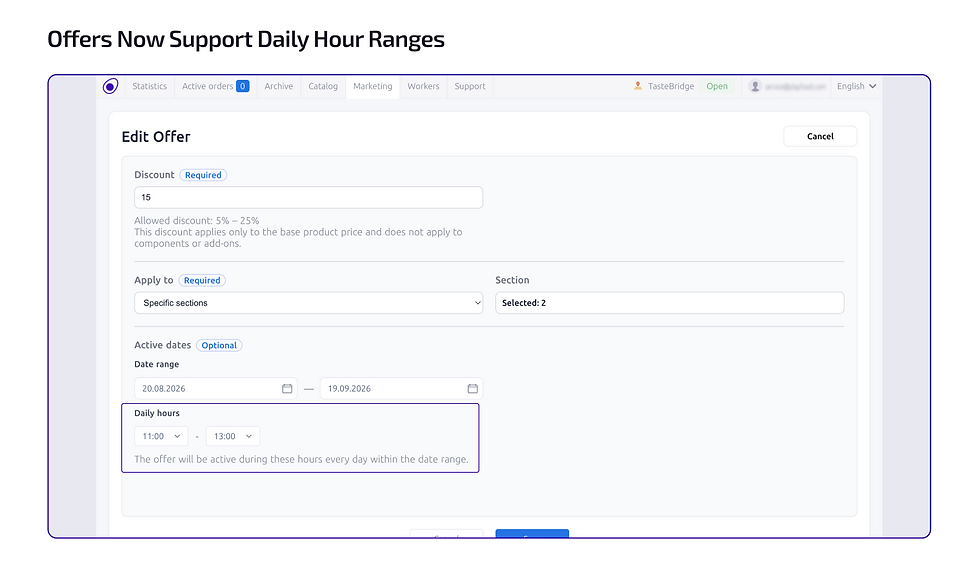
This is a useful and focused addition to the ‘Offers’ functionality introduced in Release 61. Previously, when setting up an offer in the ‘Marketing’ tab, it was only possible to define a date range for its activation. Now, however, you can also set a daily time range.
This means your vendors can configure an offer to run only during specific hours of the day — for example, a lunch promotion active between 11 am and 3 pm, or a late-night discount for the evening. The offer will activate and deactivate automatically according to the hours you set within the broader date range you have defined.
For partners running time-sensitive promotions tied to meal periods or peak traffic windows, this upgrade to the ‘Offers’ functionality is highly significant.
4. A Rebuilt Admin Area
We have been working on this one for a while. And while your customers won't see it, your operational team will feel it immediately.
We have completely overhauled the admin area and all admin panels. The motivation was clear: as our partner base grows and operations increase in scale, the admin system needs to be fast, intuitive and capable of handling real workloads. While the previous version served its purpose, it was time for an upgrade.
This release showcases the initial results: an updated visual interface, new typography, a cleaner layout and a more modern overall look that makes navigating the system much smoother. This also demonstrates our commitment to improving the UI/UX across the platform. The admin rebuild is one of our most substantial design investments, setting the foundation for future developments.


Release 63 is designed for the teams that run your platform on a daily basis. Featuring a faster admin system, a real-time incident management tool, clearer order communication and smarter offer scheduling, these updates will make your operations more resilient, your managers more capable and your customer experience more consistent.
Current Playfood partners, your Key Success Manager is ready to talk you through setting up the ‘Incidents’ tab and help you configure the right thresholds for your market. This is an important topic that requires a dedicated conversation — reach out to us and we will help you configure it.
Exploring Playfood for a new project? Contact our Key Partners Manager to see the full platform in action and gain an understanding of the operational infrastructure you would be building on.


Comments